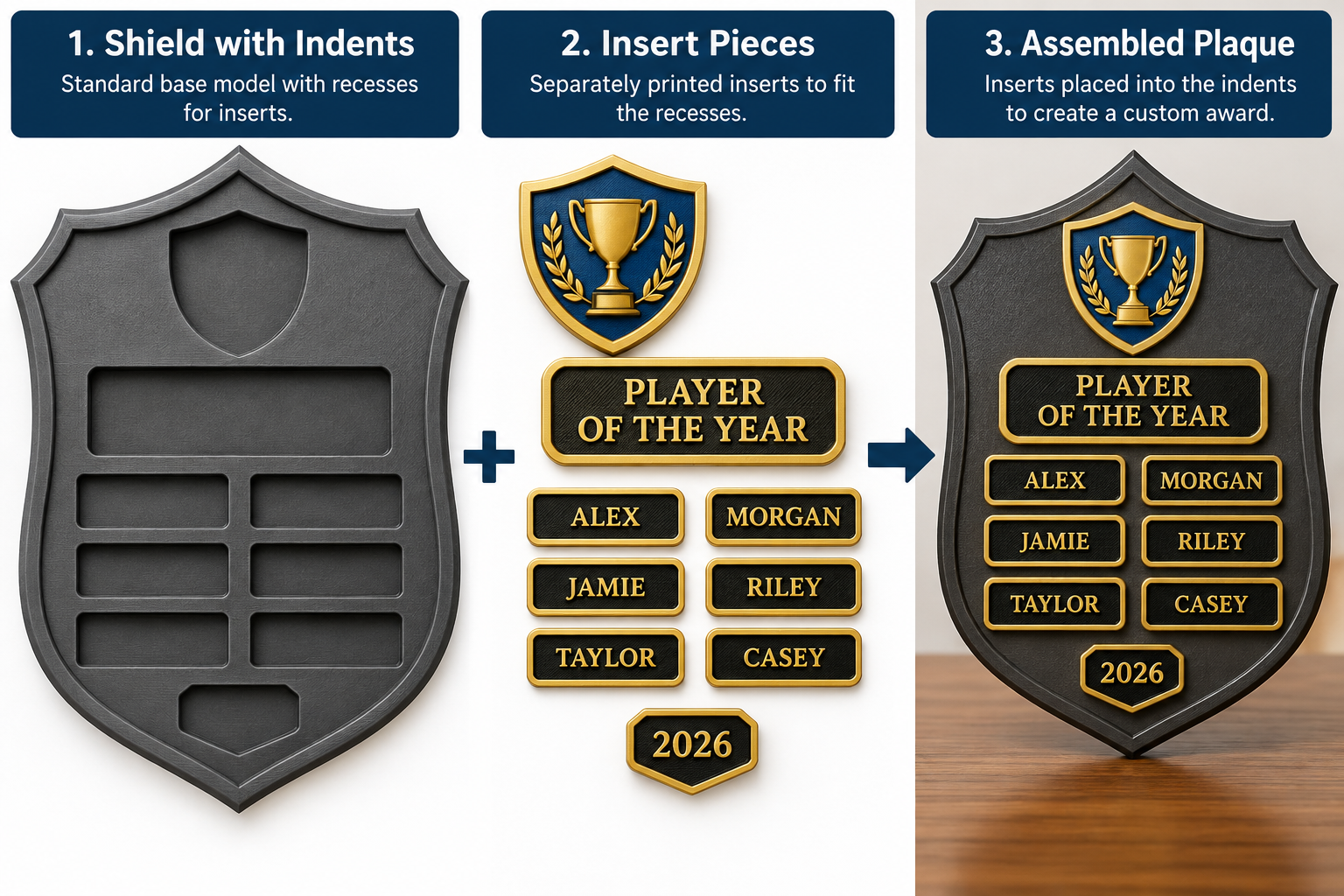
Embed One STL into Another Using a Slicer
Learn how to position one existing STL inside another and use it to create a matching recess — without creating a new CAD model.
Before You Begin
This is an intermediate DIY project. Basic familiarity with your slicer's object controls is assumed. The project focuses on positioning and modifying existing STL files rather than detailed slicer or printer setup.
1. Concept — Plan the Result
For this exercise, two simple STL files are used. A box is the receiving object and a cylinder defines the recess and the matching physical insert.
box.stl50 × 50 × 10 mm
cylinder.stlØ10 × 5 mm
combined.stlShows the intended relationship between the parts.
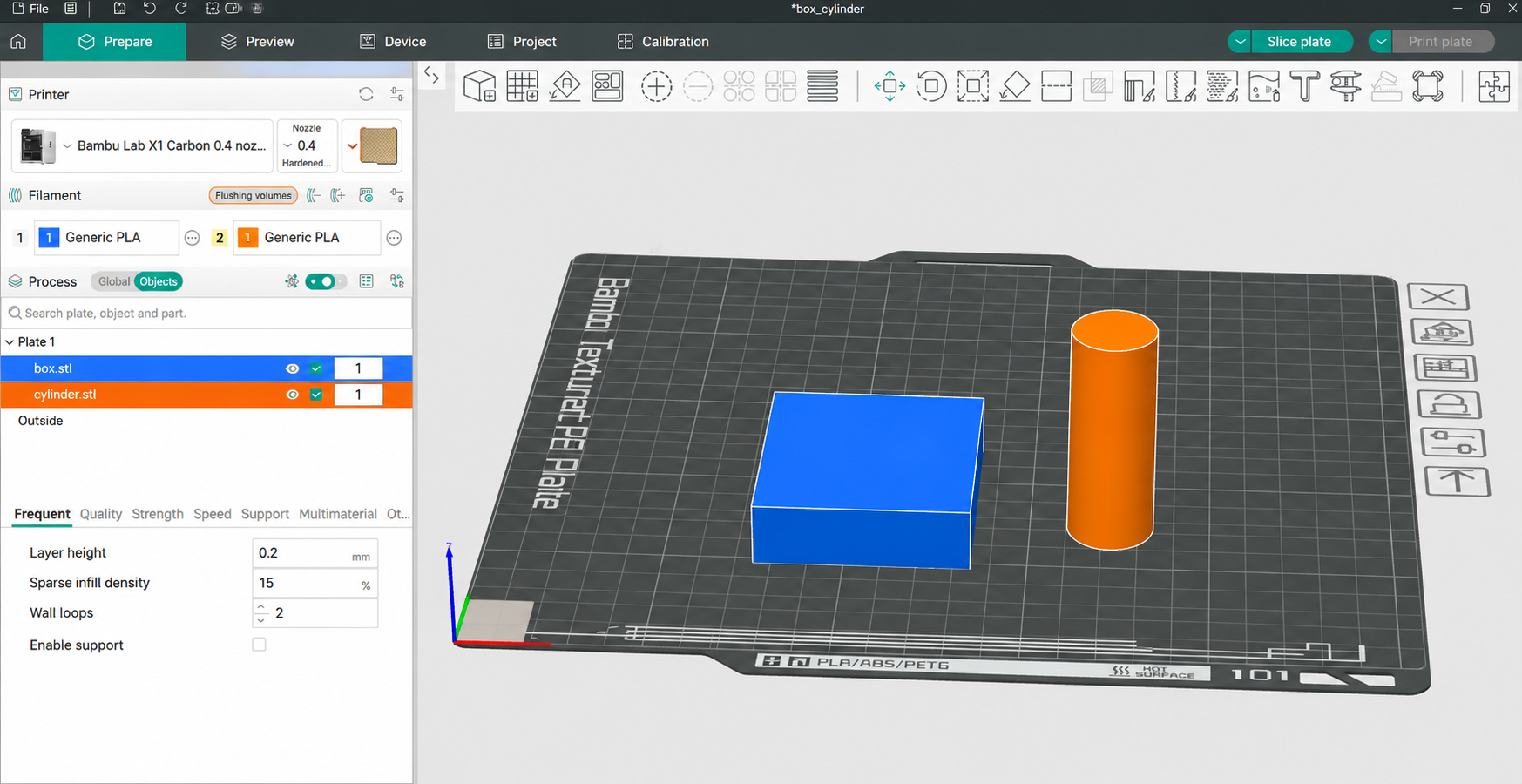
Starting files: box.stl and cylinder.stl are imported as separate objects.
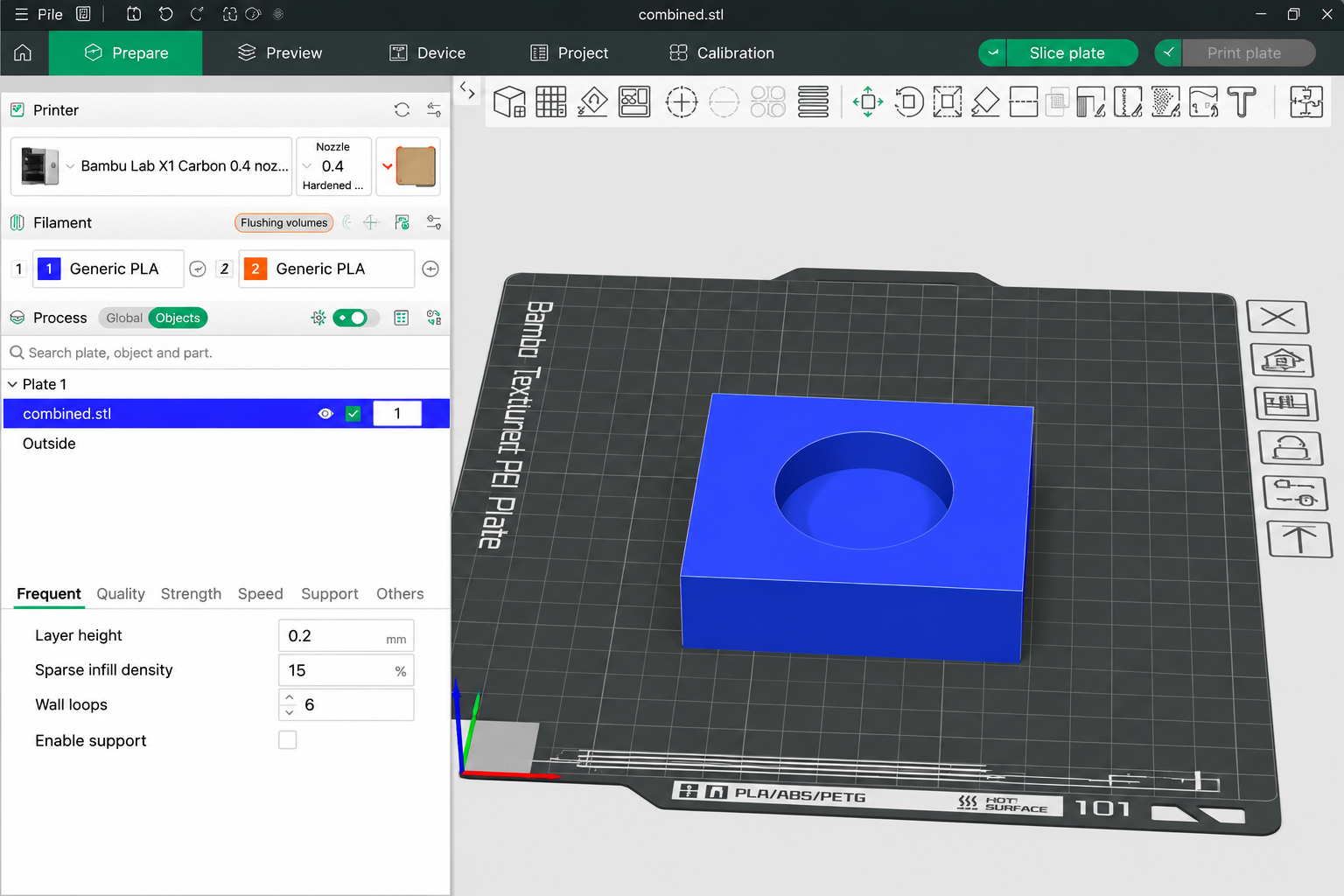
Reference result: combined.stl shows the intended circular recess in the receiving object.
Calculate the embed depth
Decide how much of the inserted object should remain above the receiving surface before positioning the models.
Cylinder thickness = 5 mm
Desired proud height = 1 mm
Embed depth = 5 − 1 = 4 mm
This calculation also helps confirm that the receiving object is thick enough for the planned recess.
2. Model — Import and Position
No new CAD model is created in this project. The modeling operation is done with the existing STL files inside the slicer.
Import
box.stl and cylinder.stl as separate objects.
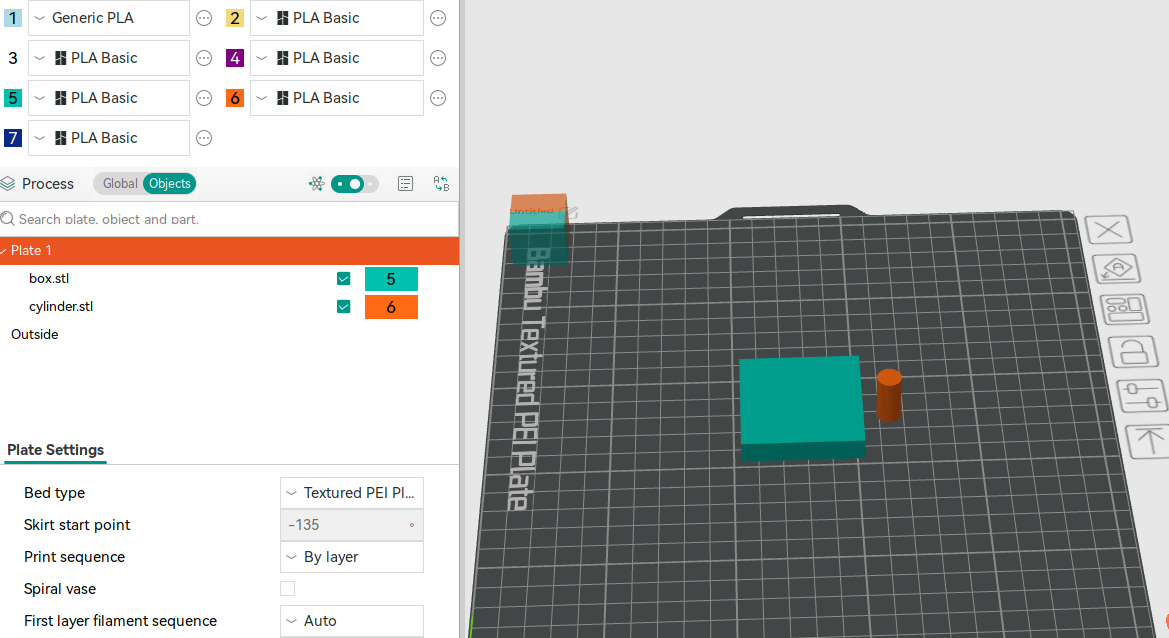
Use Object mode so the individual parts can be selected and controlled.
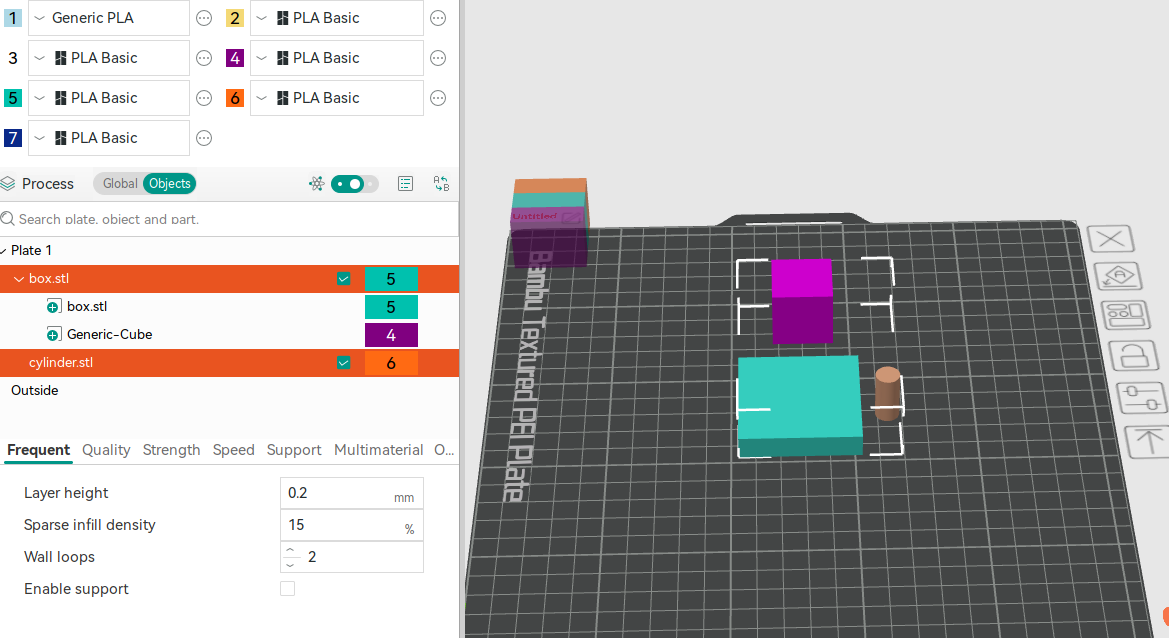
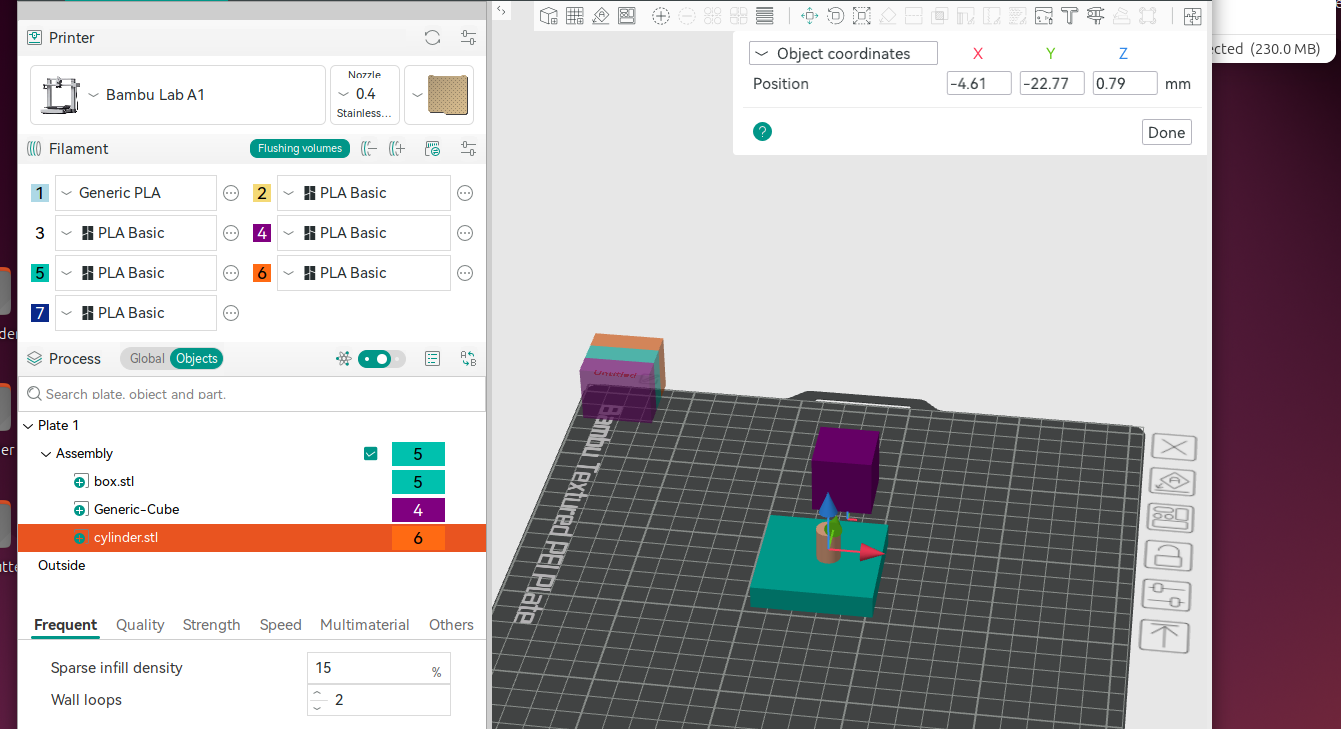
X and Y control the cylinder's location across the surface of the box.
Z controls the vertical relationship and therefore the embed depth.
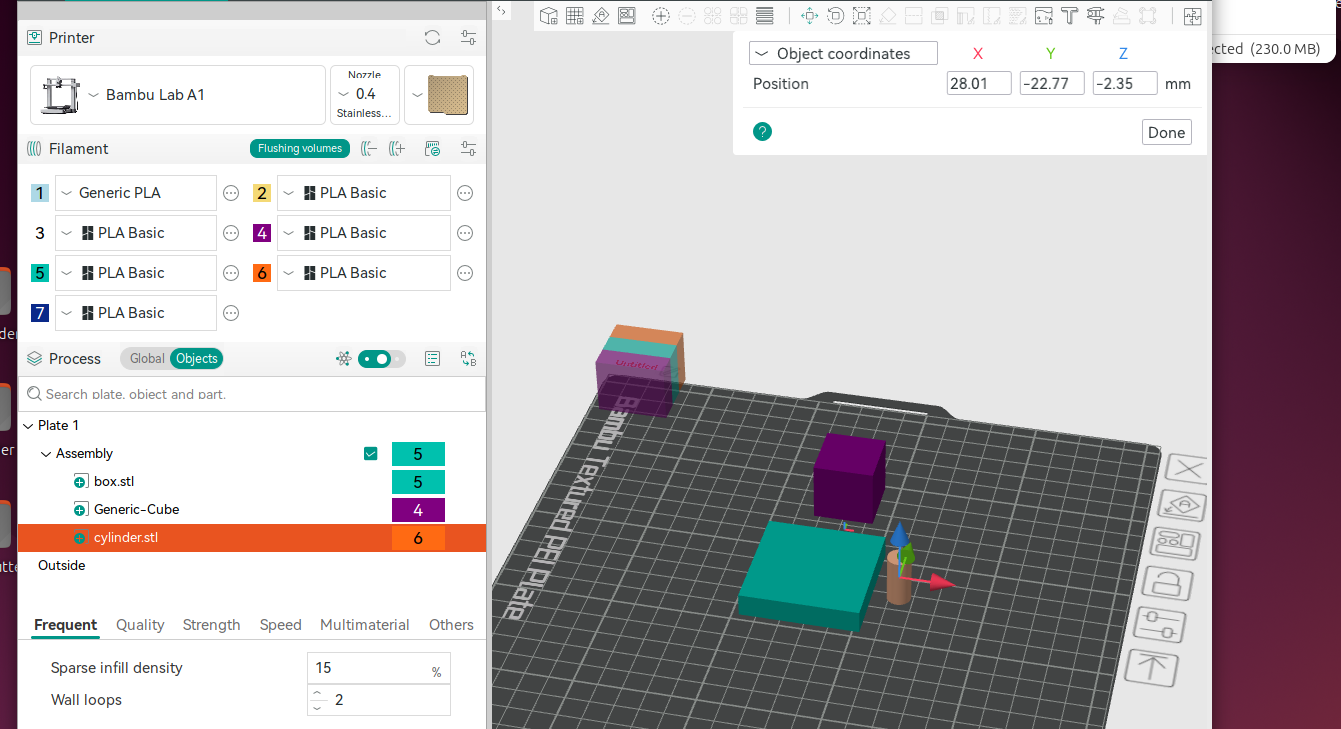
The Auto Drop Problem
Some slicers automatically place independent objects back onto the build plate. If you try to raise the cylinder in Z, Auto Drop may move it back down.
Universal Method — Use a Temporary Helper
A small temporary primitive can be used to place the objects into one structure so their relative positions can be controlled.
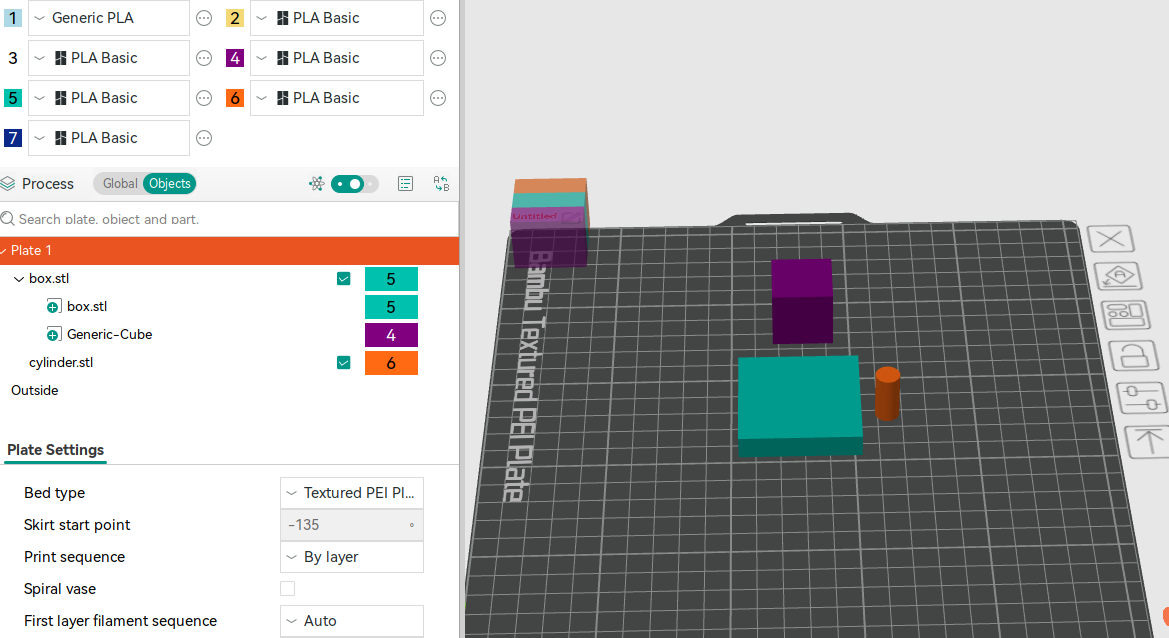
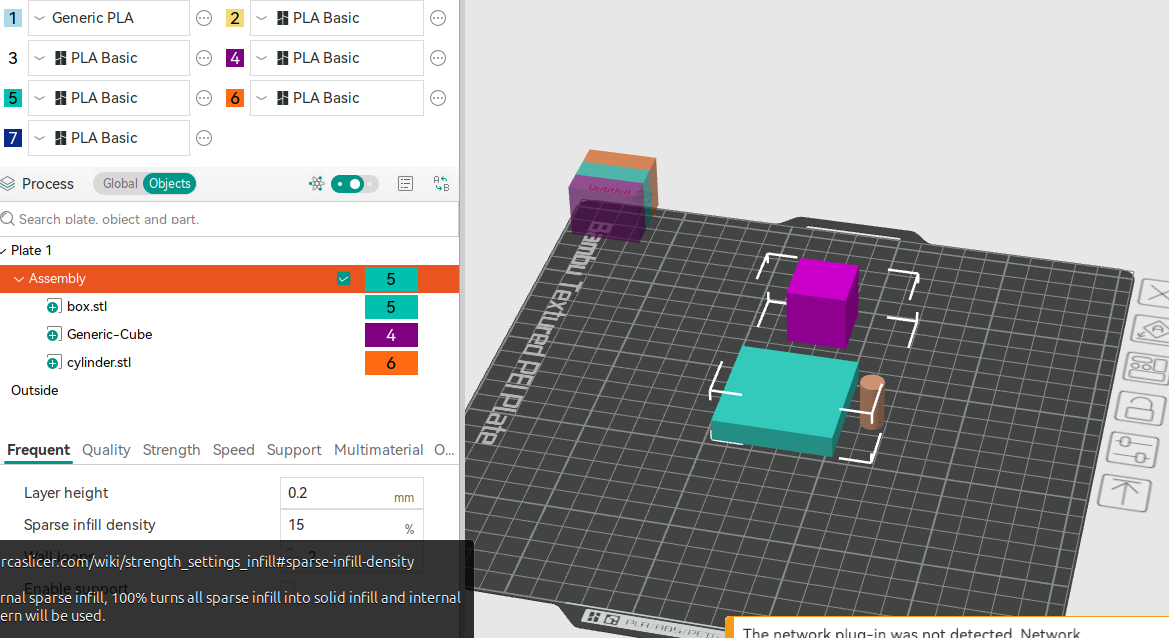
OrcaSlicer: Assemble
Once combined, the individual parts can still be controlled in Object mode. After the temporary helper is removed, the remaining parts retain their relative positions.
Shortcut — Disable Auto Drop
If your slicer allows Auto Drop to be disabled, the temporary helper may not be necessary. OrcaSlicer, for example, can allow the objects to be positioned directly after Auto Drop is turned off.
The temporary-helper method is presented first because it also works when Auto Drop cannot conveniently be disabled.
3. Create the Recess — Negative Part
Once the cylinder is positioned correctly, it can be used to remove material from the box.
Confirm the cylinder's X, Y and Z position before changing its type.
Change the positioned cylinder to a Negative Part.
The original
cylinder.stl remains available as the positive
physical inlay.
4. Slice — Verify the Result
Slice the model and switch to Preview. This is where the actual printable geometry should be verified.
Make sure the recess has actually been created.
Confirm its location on the box.
Confirm the intended embed depth.
Look for unexpected gaps or removed material.
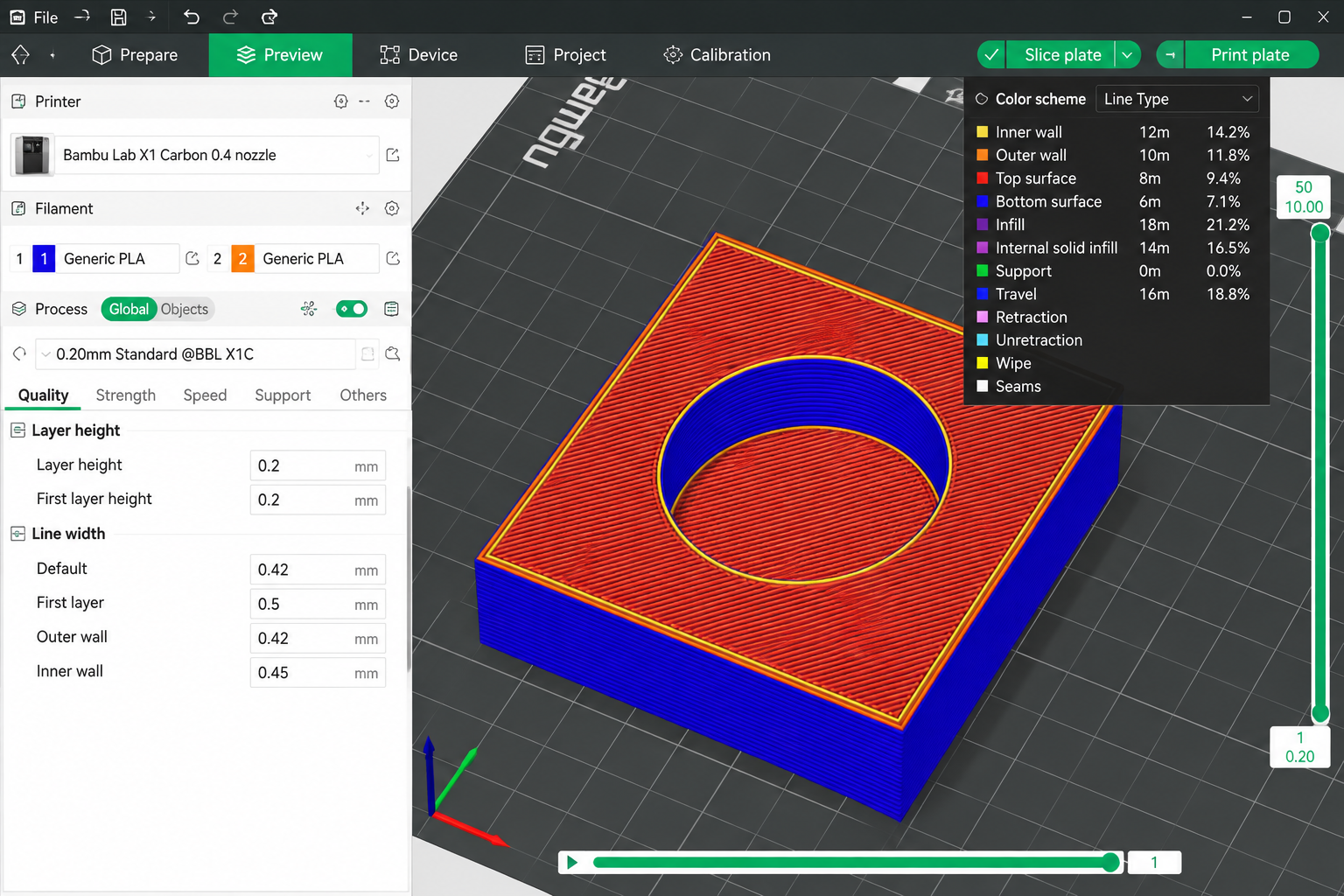
Sliced result: The cylinder has been changed to a Negative Part. During slicing, its overlapping volume is removed from the box, producing the required recess. Check the sliced Preview to confirm the recess position and depth before printing.
5. Print — Test the Parts
For the simple training example, normal PLA settings are suitable.
PLA
0.4 mm
0.20 mm
15%
Print the recessed box and print the original cylinder separately as the positive inlay. Then physically test their relationship.
6. Evaluate — Check the Result
The print is not the end of the design process. Check the physical result and decide whether another iteration is required.
Is the inlay located correctly?
Does it sit at the intended height?
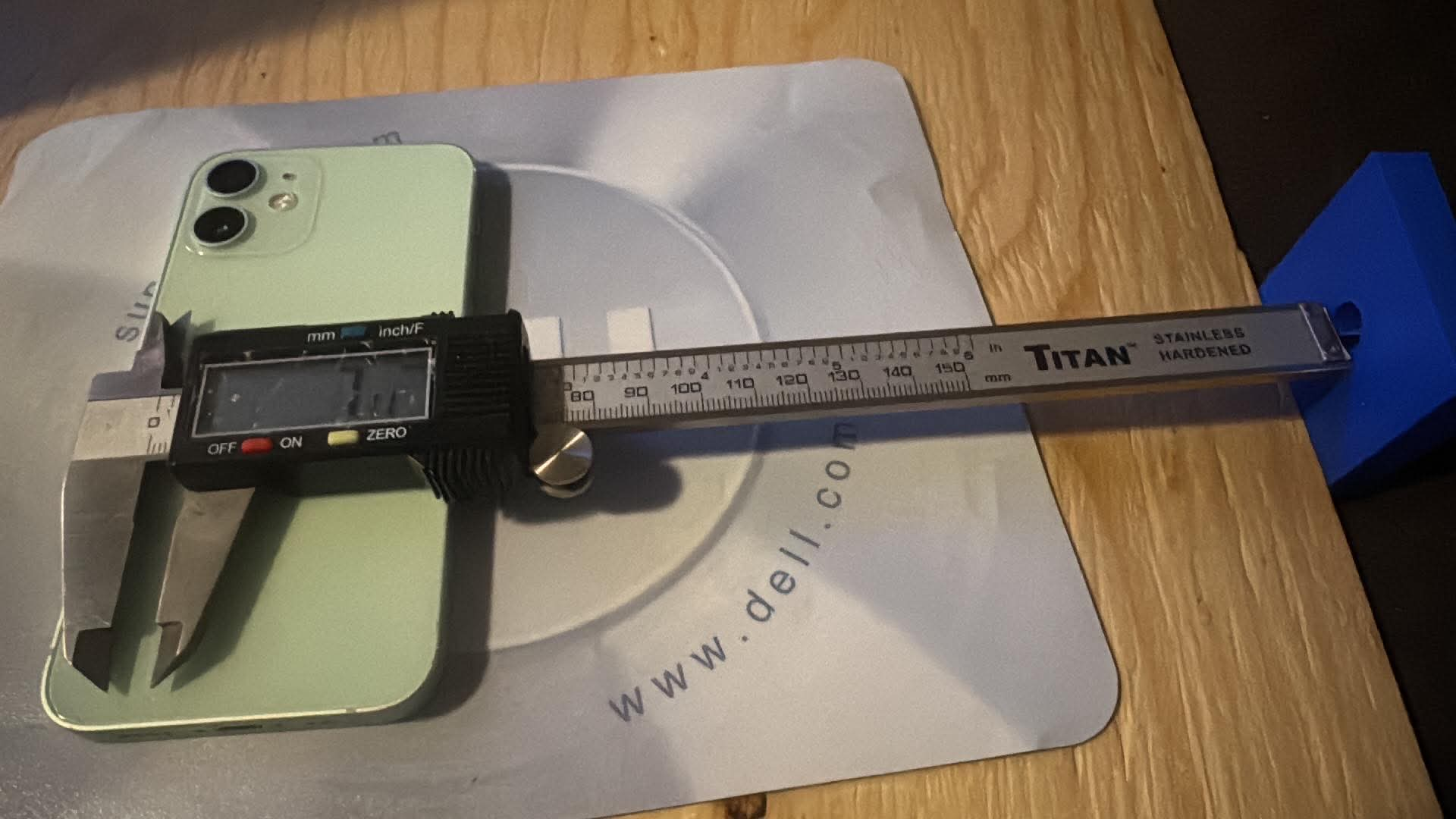
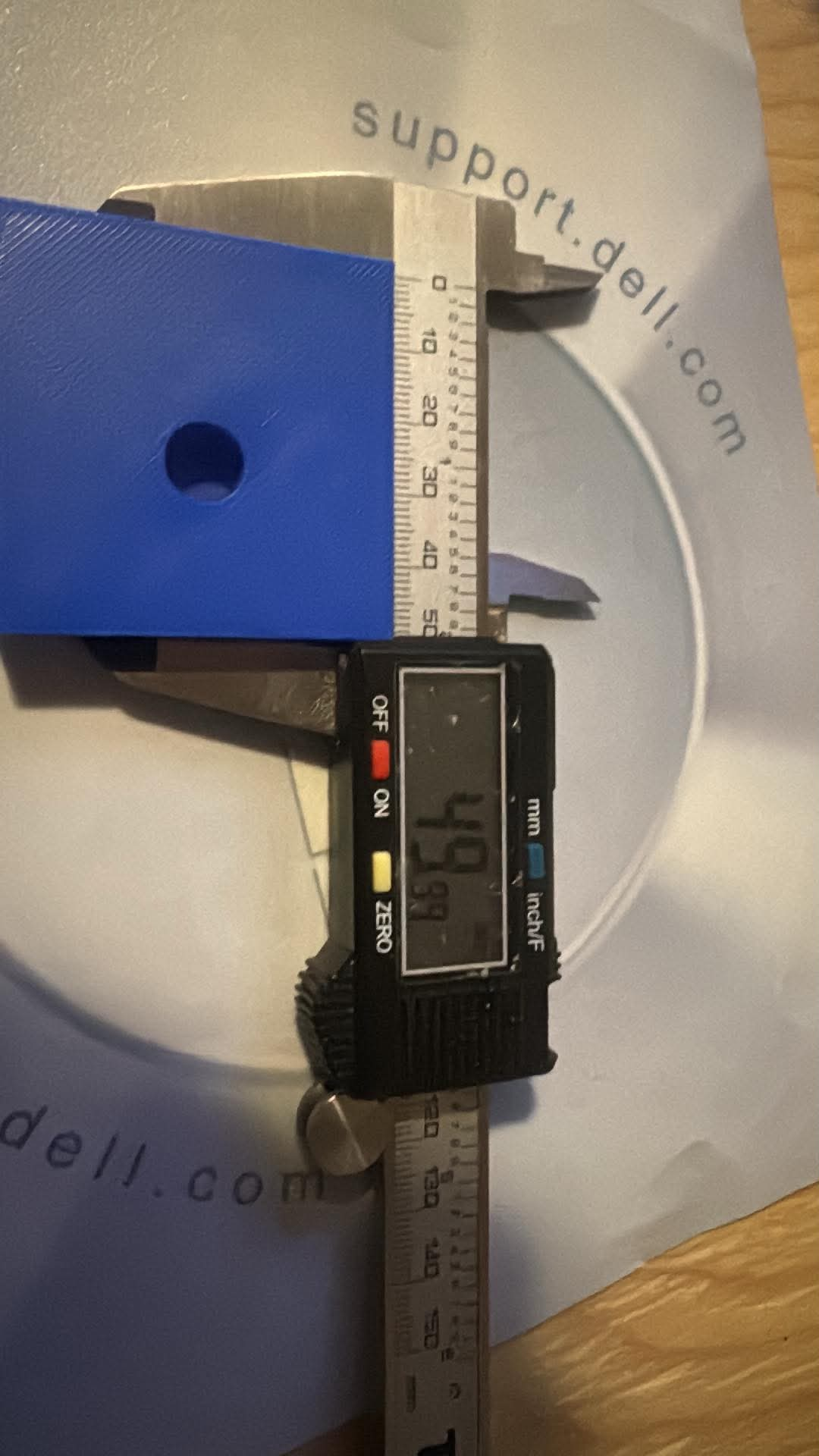
Does the physical inlay fit the recess?
Are the recess walls and surfaces clean?
Apply the Technique
The box and cylinder are deliberately simple training shapes. The same technique can be applied to much more useful projects.